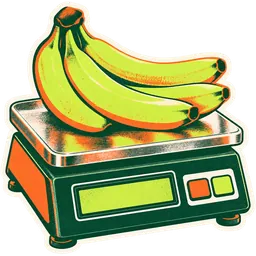
Label scales at the deli, butcher or produce counter weigh the item and print a sticker with a barcode. When the cashier scans that sticker, the register adds the right product at the right weight. This article matches the register to your scale.
How the barcode is built
The register reads a scale barcode as four parts, one after the other:
| Part | What it is | Example |
|---|---|---|
| Prefix | Fixed digits that say “this is a scale label” | 25 |
| Product SKU | The item code, a fixed number of digits | 1234 |
| Quantity, whole part | The whole number of the weight | 35 |
| Quantity, decimal part | The decimals of the weight | 50 |
With prefix 25, SKU length 4, quantity integer length 2 and quantity fractional length 2, the barcode 25 1234 35 50 (shown here with spaces) is read as product 1234, quantity 35.50. The line price is the quantity times that product’s unit price.
Step 1: find your scale’s label format
Before you change any setting, find out what your scale prints:
- Check the scale’s manual or label settings for the barcode format.
- Note the prefix digits.
- Note how many digits hold the item code (PLU or department code programmed in the scale).
- Note how many digits hold the weight, and how many of those are decimals.
If you cannot find it, print a label and send us a photo of it on the onboarding call. We work it out together.
Step 2: enable the weighing scale
- Open Settings → Business settings → POS.
- Check Enable weighing scale and save.
- Enter the prefix, product SKU length, quantity integer part length and quantity fractional part length to match your scale.
- Save.
Step 3: make the SKUs match the scale
The product SKU in your catalogue must be exactly the item code inside the label, with the same number of digits. If the scale stores beef chuck as item 0412, the product’s SKU must be 0412, not 412.
- List the items programmed in the scale (most scales can print or export this).
- Edit each weighed product so its SKU matches.
- Make sure each product’s unit is a weight unit with decimals and its price is per pound or per kilo.
Step 4: test at the register
- Weigh something on the scale and print a label.
- On the POS screen, click the weighing-scale button next to the SKU search. A box opens.
- Scan the label (or type its digits).
- Check the line: the product, the weight and the price must match the label.
- Try three different items before you go live.
In the POS settings you can assign a shortcut key to the weighing-scale button so cashiers do not need the mouse.
Common problems
“Product not found” after scanning. The SKU length or prefix does not match the label, or the product’s SKU has fewer digits than the scale’s item code. Compare the label digits with your settings.
The weight is 100 times too big or too small. The quantity integer and fractional lengths are wrong. If your scale prints three decimals, set the fractional length to 3.
Normal barcodes stopped scanning. Use the weighing-scale button only for scale labels. Regular barcodes still go in the normal search box.
Weight is right but price is wrong. The product’s unit price is per kilo while the scale weighs in pounds, or the reverse. Make the unit and price agree with the scale.
Related: Ring up your first sale · PLU codes and barcodes · Weighing scales · Hardware guide